

How To Assign a Purchased QR Tag to a Hive
Purchased a weather-resistant QR tag from our store? Great choice! Follow these simple steps to link your new tag to an existing hive in the app so you can start scanning and logging right away.
Step 1
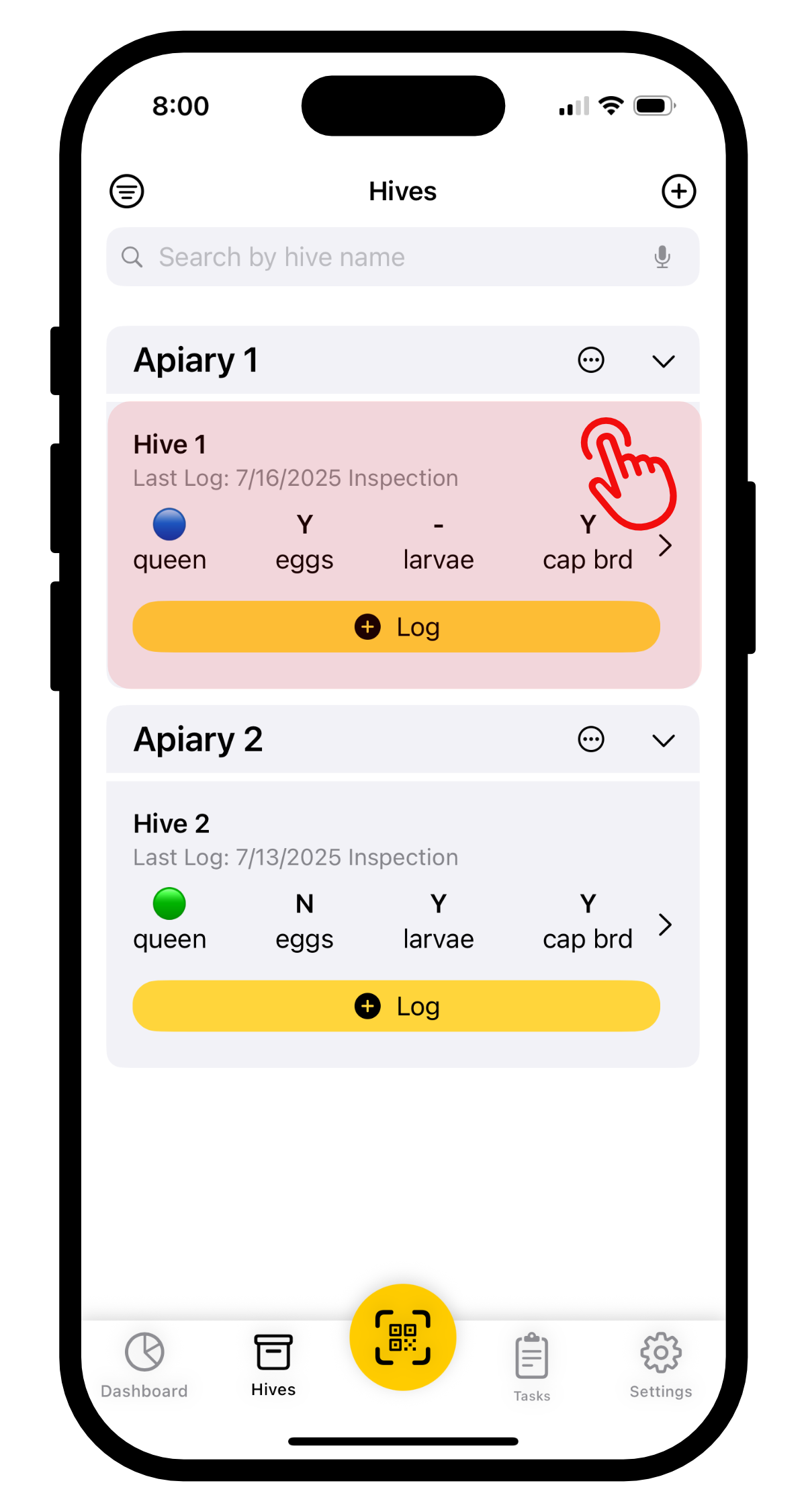
Open the app and navigate to the Hives tab. Select the hive you want to assign your purchased QR tag to.
Step 2
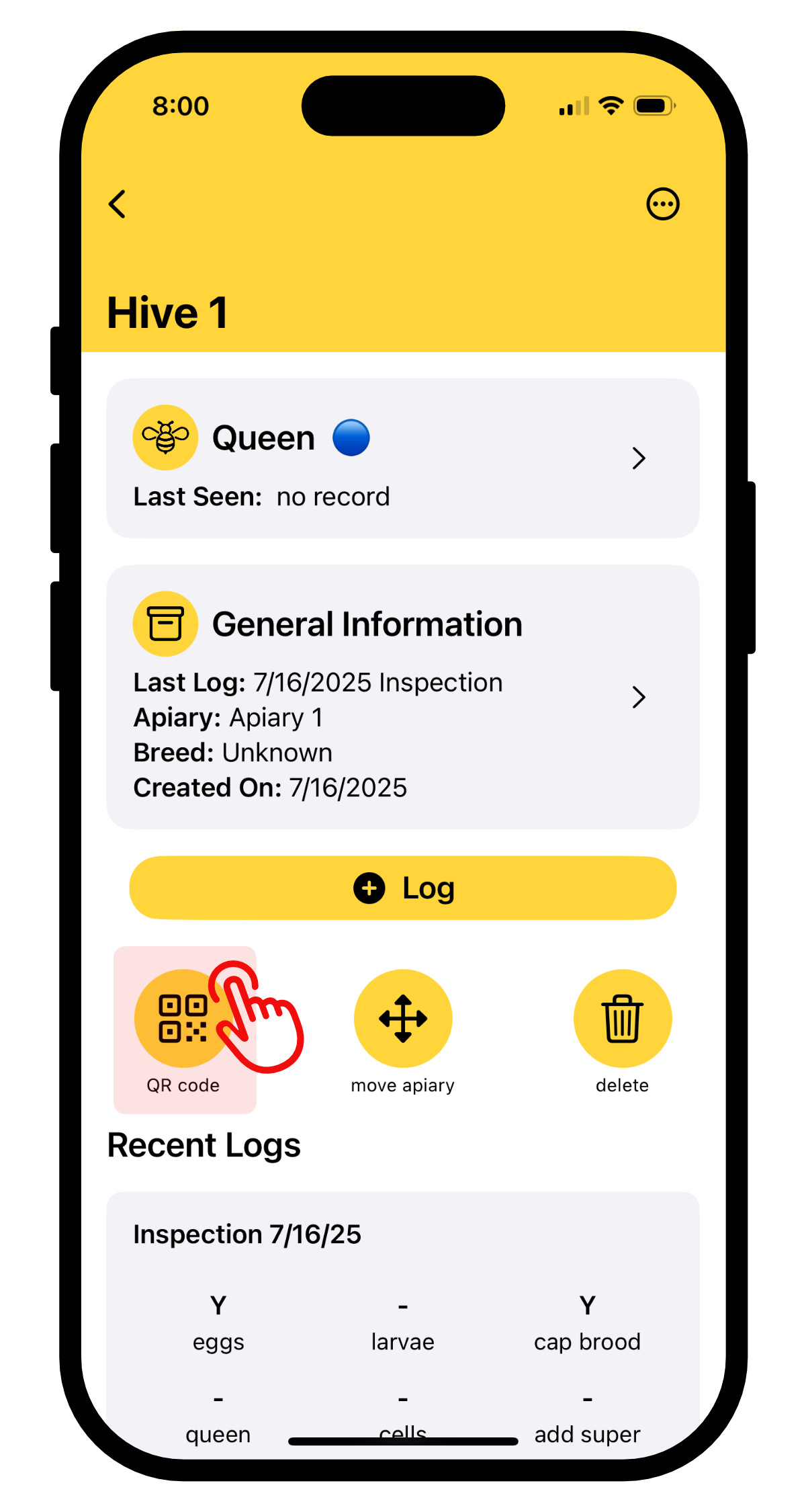
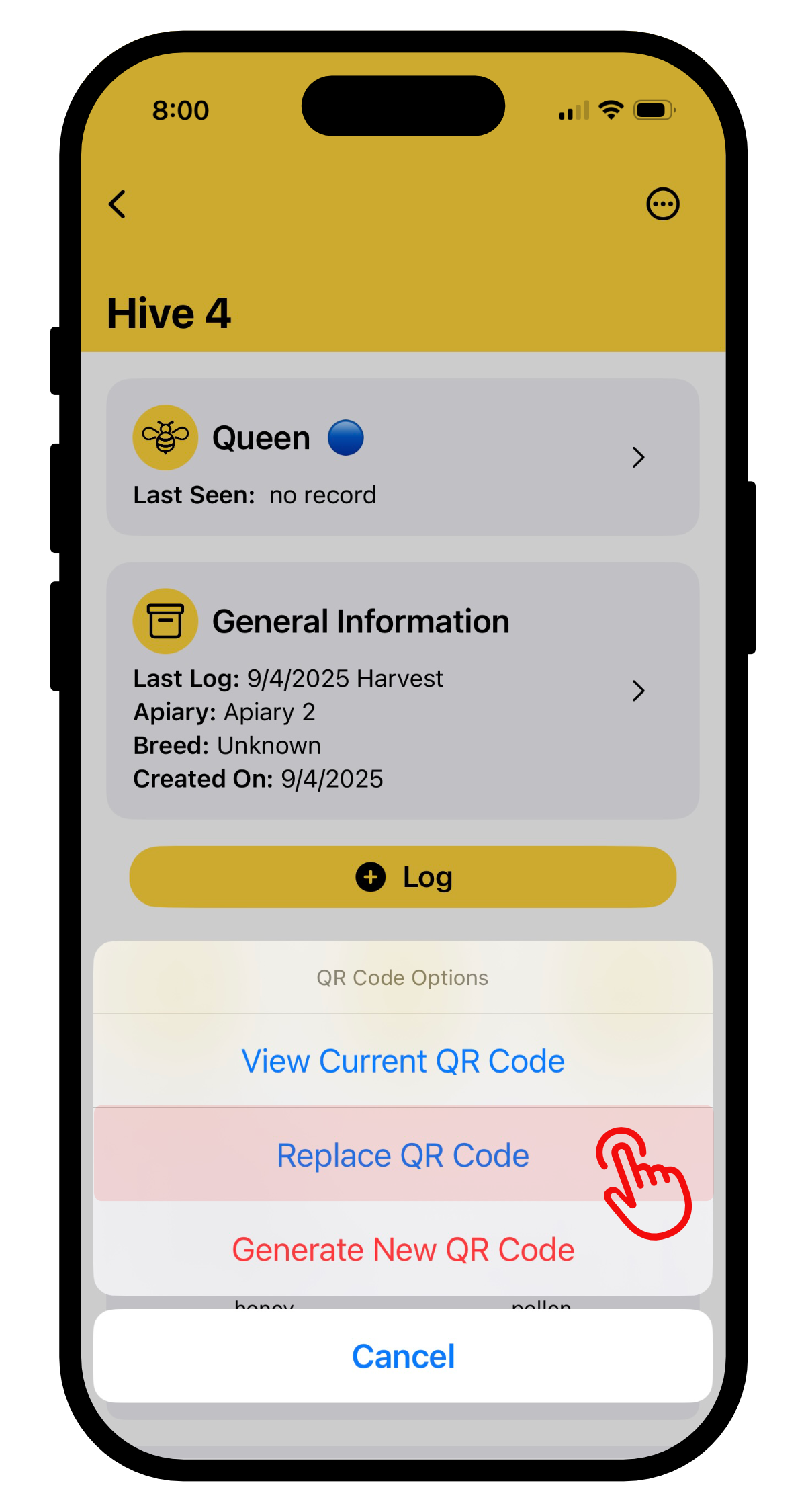
Tap the QR code button in the hive details. A menu will appear near the bottom of the screen. Select ‘Replace QR Code’.
Step 3
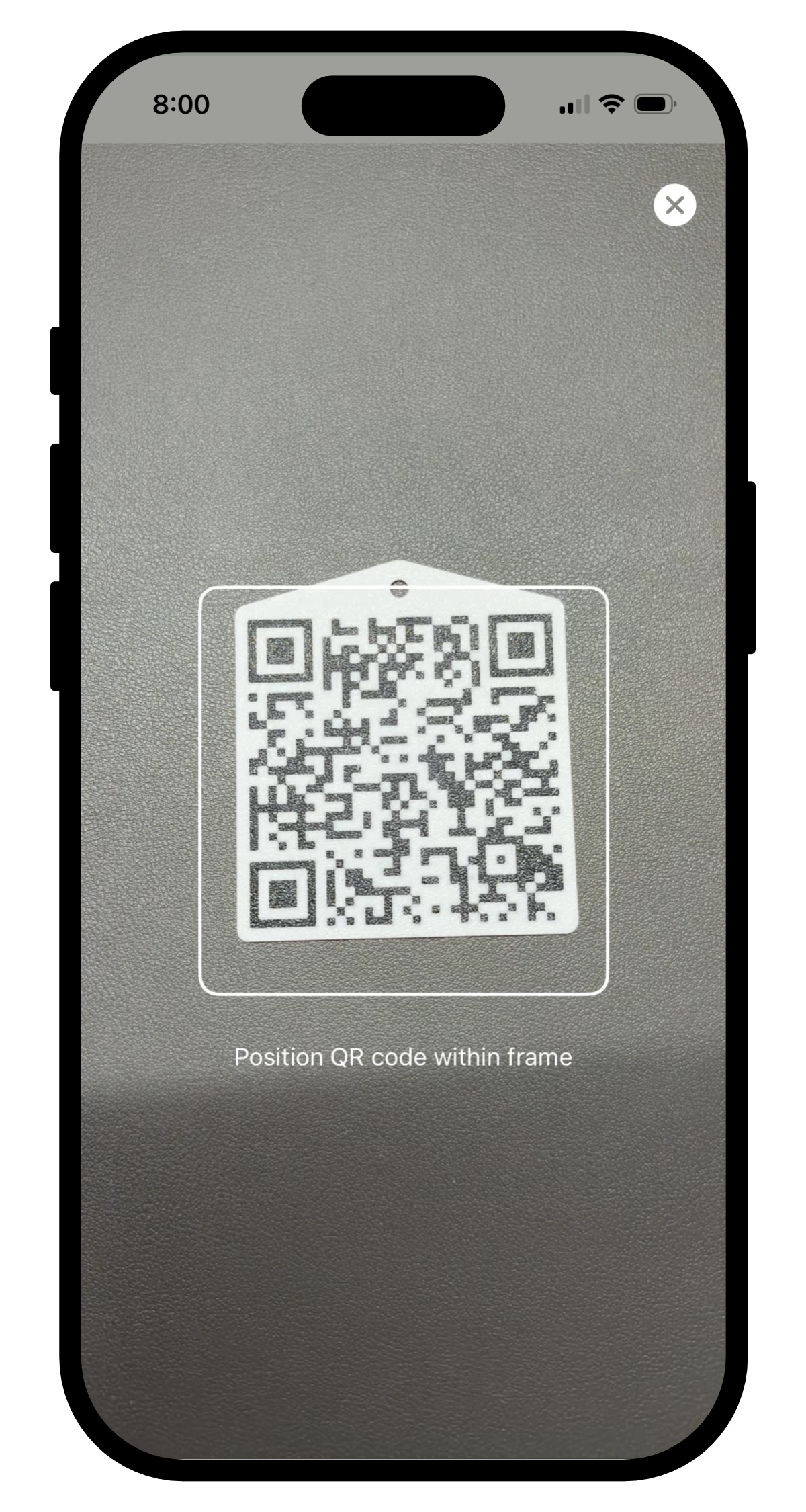
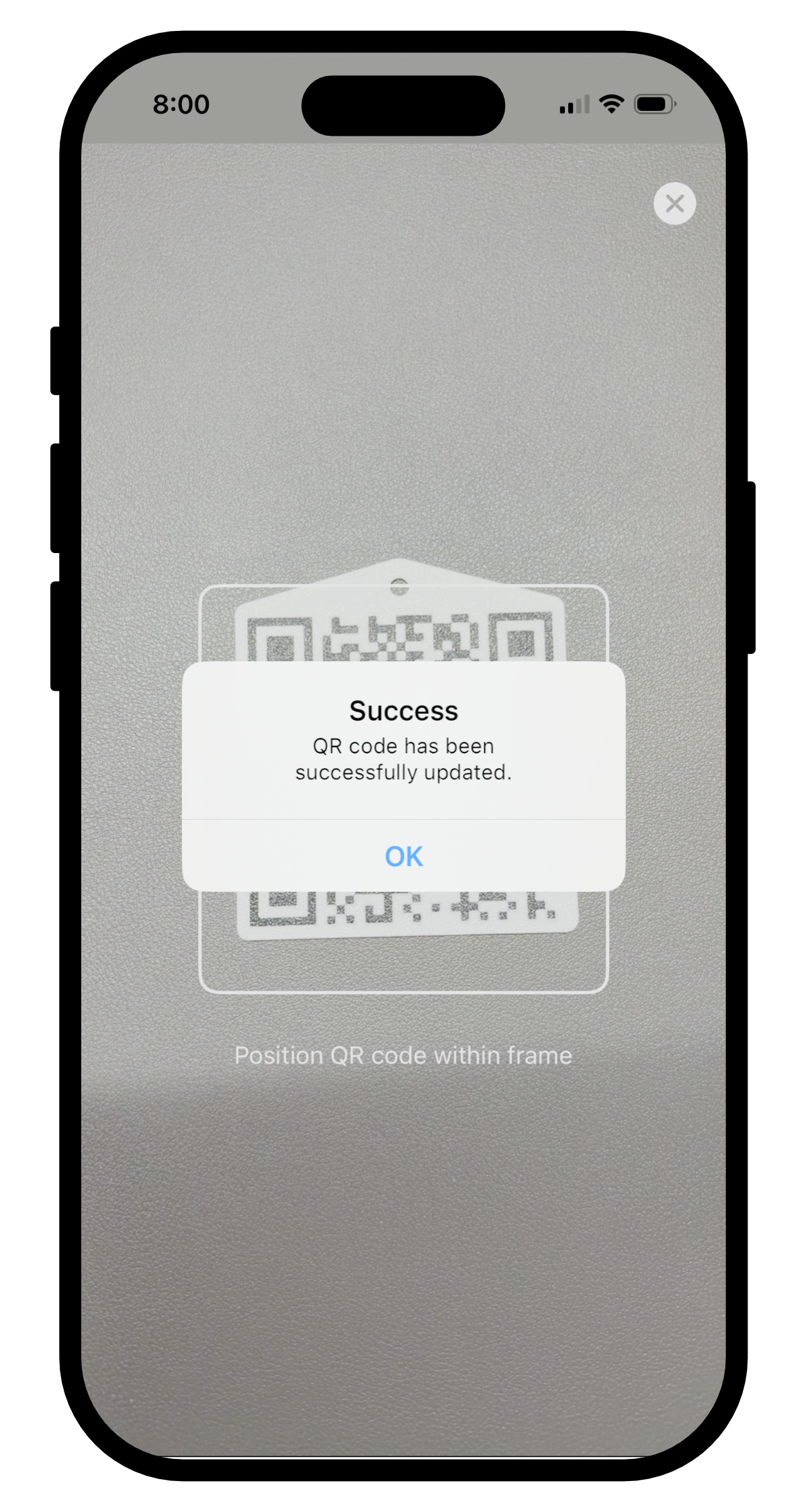
The camera scanner will open automatically. Point your camera at the purchased QR tag to scan it. Once recognized, the tag will be assigned to your hive adn you’ll see a confirmation message.
**If the camera does not open, check that Hive Trackr has camera permissions enabled in your device’s system settings.
Looking to purchase more Hive QR Tags or Hive Number Tags? Visit our store.
Hive Trackr was built by a beekeeper, for beekeepers. Our mission is to simplify hive management so you can focus on your colonies, not remembering where you set a log book or the last time you inspected a hive.